





AssetSonar Integrations Google Endpoint Management
Google Endpoint Management Integration with AssetSonar
Native
Asset Discovery & Scanning
Track Google-Managed Devices Beyond Enrollment
No Credit Card Required
From Google-Managed Devices to IT Asset Records
Google Endpoint Management enrolls and secures Chrome OS and mobile devices in Google Workspace. This device integration, separate from the Google Workspace user integration, brings them into AssetSonar for custody and lifecycle.
Add Google Devices to the Inventory
The Admin console records enrollment, not custody, location, or cost. Connect it, and the fleet arrives with its own hardware details, alongside the rest of the devices.
Keep the Device Inventory Current
People join, move teams, and leave, and their devices follow. A daily sync scoped to the Organizational Units you choose keeps each department’s inventory current.
Retire Devices Google Has Deleted
Devices are deregistered or deleted in Google, and the count keeps them for months. Detected deletions retire the matching records, so audit numbers match the actual device count.
Sync, Scope, and Manage Your Meraki Assets
CHROME OS & MOBILE IMPORT
Import Google-Managed Devices as Assets
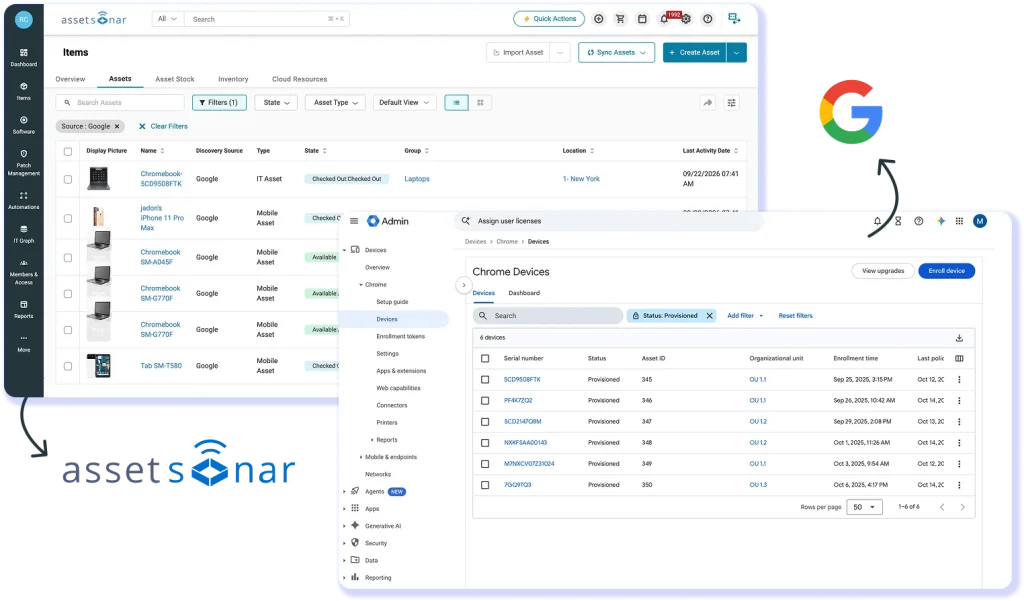
The Google Admin console stores enrollment, while the asset record holds custody, cost, and lifecycle. Manual exports fall behind as the fleet changes. AssetSonar connects to Google Endpoint Management and imports Chrome OS devices as IT Assets and Android and iOS devices as Mobile Assets, carrying serial number, model, OS and firmware, CPU, RAM, storage, and the enrollment and sync timestamps.
SCHEDULED SYNC & OU SCOPING
Keep the Inventory Current on a Schedule
DELETION, DETECTION & RETIREMENT
Retire Devices Google Has Deleted, Safely
Trusted by High-Performing Teams


Connect the Admin Console to Your IT Asset Inventory
Set Up the Integration in a Few Steps
Requirements
- A Google Workspace account holding the Administrator role.
- Chrome OS, Android, or iOS devices enrolled in Google Endpoint Management.
- Admin access to Settings in AssetSonar.
- An AssetSonar ITAM or ITAM with ServiceDesk plan.
Set up in simple steps
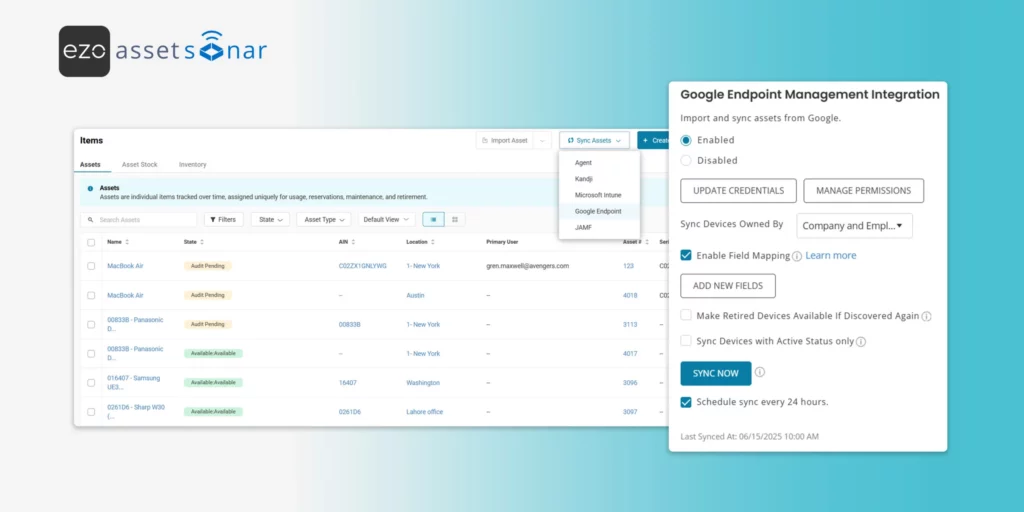
- In AssetSonar, go to Settings > Integrations > Mobile Device Management & Network Discovery > Google Endpoint Management Integration.
- Set the integration to Enabled and click Update.
- Enable Sync Devices with Active Status Only to import only devices Google marks as Active.
- Click Connect, sign in with the Google Workspace Administrator account, and allow the requested access.
- Under Manage Permissions, choose Sync Chromebooks, Sync Mobile Devices, Filter Chromebooks on the basis of Organizational Units, and Detect Deleted Devices from Google, then click Update Permissions to re-authenticate with Google.
- Optionally, turn on Automatically Retire Deleted Devices from Google, then click Update Permissions to re-authenticate with Google.
- Click Sync Now, check a sample of imported devices, then turn on the 24-hour schedule and click Update.
- To change the connected Google account later, for example, when the admin changes, click Reconnect and sign in with the new Administrator account.
Other Integrations in Asset Discovery & Scanning
Read More on Google Endpoint Management Integration
Frequently Asked Questions
Chrome OS devices arrive as IT Assets, and Android and iOS devices arrive as Mobile Assets. Chrome OS records carry serial number, model, users, MEID, MAC and IP address, OS and OS version, firmware, CPU, system RAM, total and free storage, and enrollment and last-sync times. Mobile records carry serial number, IMEI, MAC, MEID, model, OS and OS version, BIOS manufacturer, and enrollment and last-sync timestamps. Both include supervision and encryption state, and Chrome OS includes TPM information.
Turn on Detect Deleted Devices from Google, and AssetSonar reads the Google Workspace audit log to find deleted devices. Automatically Retire Deleted Devices from Google, available once detection is on, then retires the matching records. Only devices in Available status are retired, so anything checked out or under maintenance is left alone. If a device is discovered again on a later sync, Make Retired Devices Available if Discovered Again returns it to Available.
The sync is one-way, from Google Endpoint Management into AssetSonar. Google remains the enrollment and security authority for the fleet; Google Endpoint Management stays the enrollment and security authority for the fleet, and AssetSonar builds the custody, lifecycle, and financial layer on what it reports. With deletion detection and automatic retirement on, AssetSonar retires matching Available devices that Google deletes, and their history stays in AssetSonar for audits.
The integration syncs on demand or on a schedule. Click “Sync Now” to import devices immediately, or enable the scheduled sync to refresh device data every 24 hours. If a device needs fresher data before the next scheduled run, you can sync it individually from its record instead of running the full import again. Each record shows three dates: the last sync date in AssetSonar, the last Google sync date in Google Workspace, and the Google enrollment date (when it joined Google Workspace).
The connection needs a Google Workspace account that holds the Administrator role. An administrator connects by signing in with that account and allowing the access Google requests, with no API key to paste. Manage Permissions in AssetSonar controls what the integration syncs: Chromebooks, mobile devices, Organizational Unit filtering, and deletion detection. Update Permissions returns to Google to confirm any change. Reconnect to change the connected Google account later.
Yes. The Google Endpoint Management integration is included in both the AssetSonar ITAM and ITAM with ServiceDesk plans. There is no separate connector fee; the devices it imports count toward the assets on your plan. Google Workspace cloud software discovery runs through the separate Google Workspace integration and sits under the Advanced SAM module instead. Check the pricing page for current plan details.
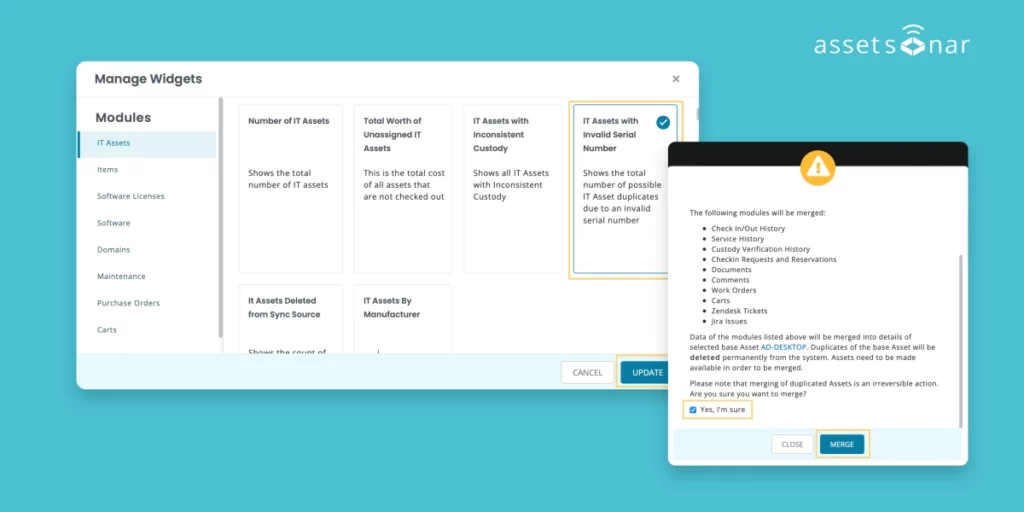
AssetSonar matches incoming devices on unique identifiers, including Source ID and a valid serial number, so a device it already holds is updated rather than added again. Duplicates can still appear, for example, when a device enrolled in Google also runs the AssetSonar ITAM Agent or is re-enrolled in a second platform. Review those with the guided merge, which keeps one record. The record being corrected must be in Available status.
Software for Chromebooks is picked up through AssetSonar’s cloud software detection rather than from the device record. Run Software, then Cloud Software, then Detect Cloud Software for Google Workspace, and the applications connected to your Google Workspace tenant are discovered and the results emailed to you. Mobile device records list the applications that access Google Workspace data in their Software Details tab. License tracking for all of it sits with software asset management.
They are two separate integrations that work together. Google Endpoint Management brings Chrome OS and mobile devices into AssetSonar. The Google Workspace integration, categorized under Identity Management, covers directory user sync, cloud software discovery, and offboarding actions, each with its own setup. Running both gives IT one system for the device and the member holding it. Each is enabled and configured separately, and neither requires the other.
Windows devices reach AssetSonar through the ITAM Agent, Microsoft Intune, Microsoft SCCM, and network discovery, and Mac devices through the ITAM Agent and Jamf Pro. Google Endpoint Management supplies the Chrome OS, Android, and iOS devices enrolled in Google Workspace. Together, these sources give IT one inventory across operating systems, and the guided merge resolves any record that arrives from two sources. Teams can add each source as their fleet needs it, in any order.