





AssetSonar Integrations Microsoft Intune
Microsoft Intune Integration With AssetSonar
Native
Asset Discovery & Scanning
Build Accurate Asset Records With Intune Device Data
No Credit Card Required
From Intune-Enrolled Devices to Managed IT Assets
Microsoft Intune is Microsoft’s cloud endpoint management service for enrolling and securing devices. Connect Intune to AssetSonar to bring enrolled devices into asset records, combining Intune’s device identifiers and details with cost, contract, and ownership data managed in AssetSonar.
Fill Asset Records From Intune
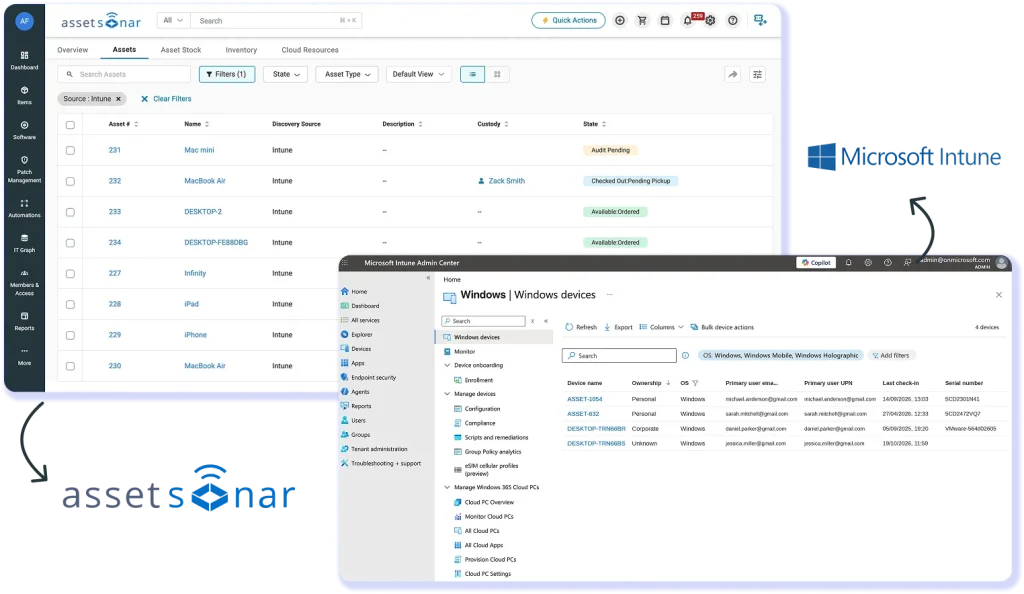
Sync selected Intune devices into AssetSonar with hardware, software, and security details. Keep asset records current for reporting and audits without repeated exports.
Skip the Device-by-Device Rollout
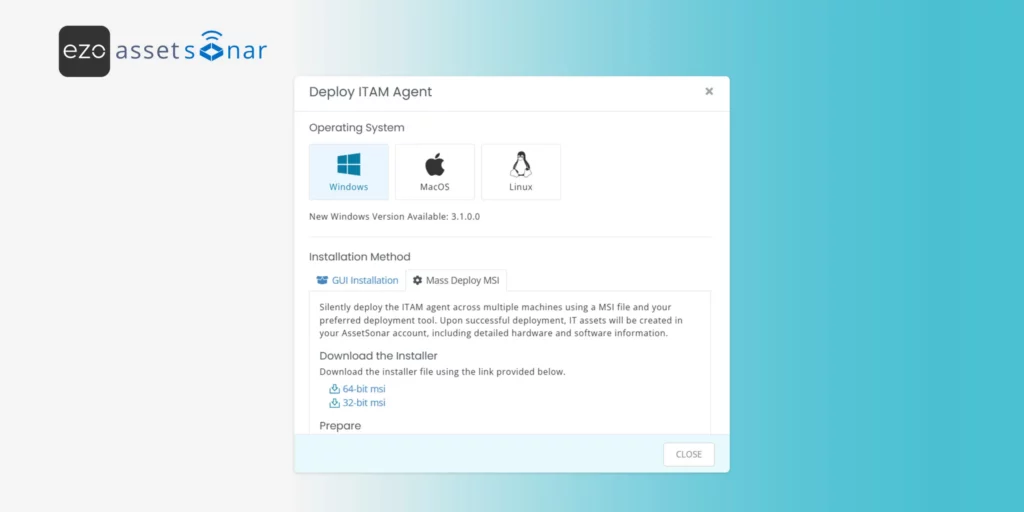
Use Intune to deploy the AssetSonar ITAM Agent across Windows and macOS devices. Populate your asset records with deeper hardware and software details beyond MDM data.
Keep One Accurate Record Per Device
Keep one asset record per device across Intune and the ITAM Agent. Match devices by serial number to maintain reliable inventory counts from pre-enrollment through retirement.
Add Depth and Accuracy to Intune Device Data
DEVICE DISCOVERY & IMPORT
Import Intune Devices as Detailed Assets
ITAM AGENT DEPLOYMENT
Deploy the ITAM Agent Through Intune
MATCHING & LIFECYCLE
Track Devices From Provisioning to Retirement
Trusted by High-Performing Teams


Capture Agent-Level Details in Your Asset Records
Connect Microsoft Intune to AssetSonar
Requirements
- A Microsoft Intune tenant with devices to import.
- A Microsoft Entra ID app registration with its Application ID, Directory ID, and Client Secret. Copy the secret value when it is created, because it is visible only then and expires.
- Microsoft Graph application permissions with read access to users, directory, managed devices, apps, service configuration, and device configuration.
- Admin consent from a Global Administrator or another administrator authorized to approve the permissions, and access to AssetSonar's integration settings.
Setup in simple steps
- In AssetSonar, open Settings > Integrations > Microsoft Intune Integration and select “Enabled.”
- Click “Add Tenant,” enter the Application ID, Directory ID, and Client Secret, then click “Add.”
- Choose IT Assets, Mobile Assets, or both. Select company-owned, employee-owned, or unassigned devices as needed.
- Click “Sync Now” to import selected devices. To schedule regular imports, enable “Schedule sync every 24 hours” and click “Update.”
Other Integrations for Asset Discovery & Scanning
Read More on Microsoft Intune Integration
Frequently Asked Questions
The integration syncs device data one way, from Microsoft Intune into AssetSonar. Intune remains responsible for enrollment, policies, and compliance, while AssetSonar uses the imported information in its asset records. AssetSonar can also send lock and retire commands to Mac, iOS, and Android devices, but these are separate MDM actions, not two-way record synchronization. They require an additional Microsoft Graph permission, which must be enabled separately and has its own access controls.
Admins can import devices on demand with “Sync Now” or enable an optional sync every 24 hours. Sync Now imports the devices selected by the current device type and ownership filters. The integration is not real-time, so changes made in Intune may not appear in AssetSonar until the next sync. Imported records carry Intune enrollment and last-sync timestamps, which show how current each record is. To refresh your records after changes, run Sync Now instead of waiting for the scheduled sync.
The integration uses six Microsoft Graph application permissions: User.Read.All, Directory.Read.All, DeviceManagementApps.Read.All, DeviceManagementManagedDevices.Read.All, DeviceManagementServiceConfig.Read.All, and DeviceManagementConfiguration.Read.All. A Global Administrator or another authorized administrator grants consent. Enable the complete set during setup to avoid integration errors. Lock and retire commands require a seventh Microsoft Graph permission with separate access controls.
Yes. For Mac, iOS, and Android devices imported through Microsoft Intune, AssetSonar supports lock and retire commands. Admins enable MDM Management Commands in AssetSonar, which sends a one-time password to the Account Owner, then grant the separate DeviceManagementManagedDevices.PrivilegedOperations.All Microsoft Graph permission and refresh the Intune token. Only Account Owners, admins with company settings access, or admins authorized through custom roles can run commands.
AssetSonar detects devices deleted from Microsoft Intune and can retire the matching IT assets, depending on the retirement settings admins enable: Detect Deleted Devices from Intune and Automatically Retire Deleted Devices from Intune. Retirement applies only to assets in the Available state. A previously retired asset returns to Available only if “Make Retired Devices Available If Discovered Again” is enabled. Admins should check both conditions before expecting a retirement.
Yes. In Intune tenant settings, enable Provision Windows Autopilot Devices to import pre-enrolled Windows devices, which appear with an Autopilot label. Enable Provision Apple ADE Devices to import pre-enrolled Macs synced from Apple Business Manager; they show as Not Contacted until enrollment. Intune-detected virtual machines are provisioned into AssetSonar alongside managed devices. The pre-enrollment imports require these settings, while VM import follows Intune’s detected devices.
No. Microsoft Intune remains the endpoint-management layer for enrolling devices, applying configurations, and handling compliance. AssetSonar adds ITAM context such as purchase costs, contracts, warranties, depreciation, ownership history, and software licensing. It can also track equipment outside Intune’s enrolled fleet, including monitors and network hardware, through separate discovery and tracking workflows.