Unmanaged cloud software can easily slip into your environment when users access SaaS apps directly in their browsers. Without visibility or control, this “Shadow IT” leads to compliance risks and wasted spend.
AssetSonar’s Browser Tracking and Domain Blocking features help you monitor browser activity, track SaaS usage, and block access to restricted domains.
This guide walks you through all browser tracking capabilities in AssetSonar and including how to enable browser tracking, adding blocked domains, and monitoring usage insights.
1. Enable Browser Tracking and Domain Blocking
- To enable browser tracking and domain blocking:
- Go to Settings → Company Settings & Addons → Software Usage Metering.
- Select Enabled.
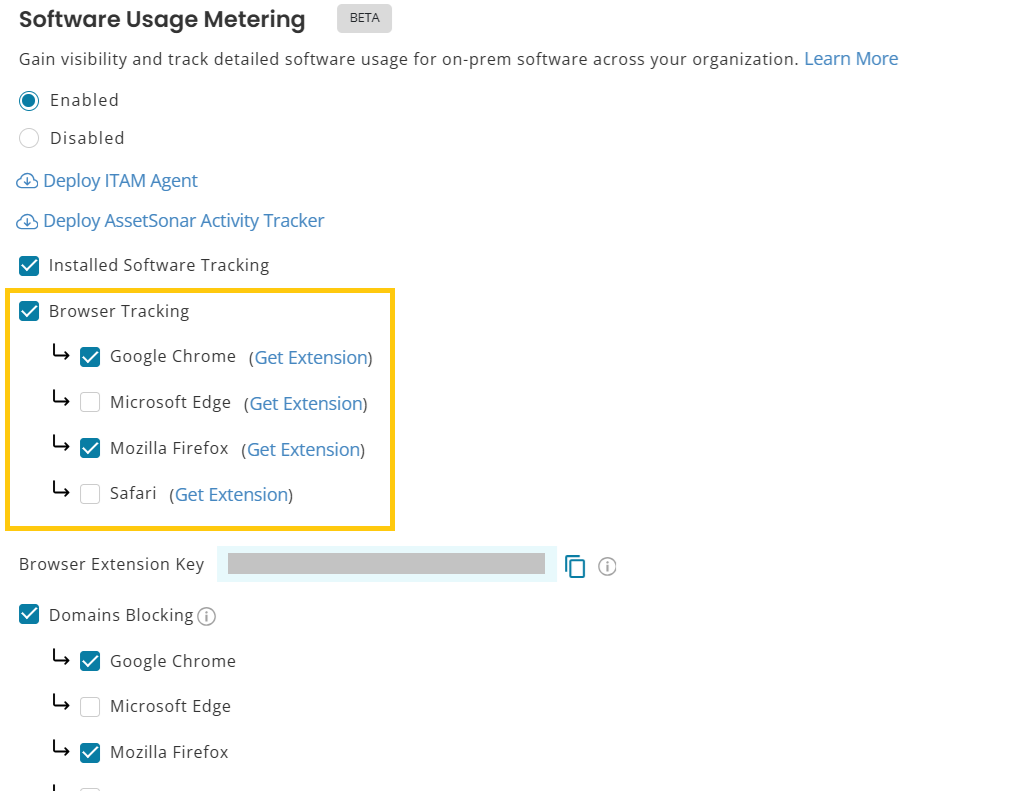
- Check Browser Tracking and select the browsers you want to track:
- Google Chrome
- Microsoft Edge
- Mozilla Firefox
- Safari
- If you also want to restrict access to selected domains, check Domains Blocking and select the browsers on which you want those restrictions applied.
- Click Update to save your changes.
- You can use the Get Extension link next to each browser under Browser Tracking to access its AssetSonar browser extension.
2. Add Domains to Block
After Domains Blocking is enabled in the settings:
- A new textbox for adding domains you want to restrict appears below the checkbox.
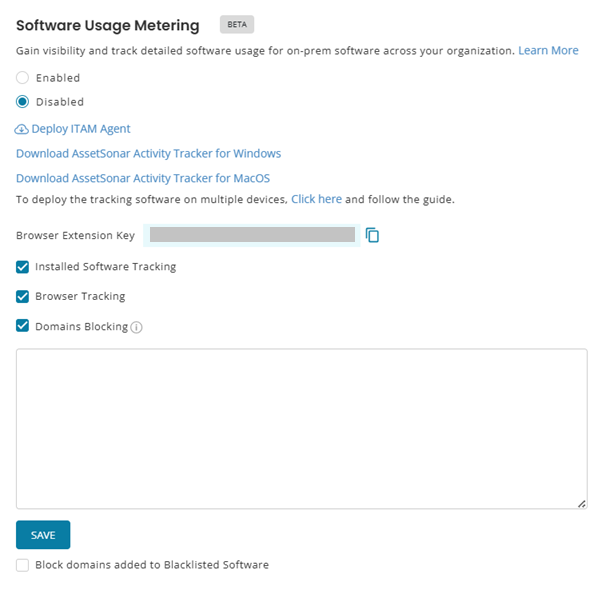
- When you add a domain, all its related subdomains will also be blocked automatically. For example, blocking dropbox.com will also block www.dropbox.com and login.dropbox.com.
- You can also enable the option Block domains added to Blacklisted Software. This automatically blocks all domains tied to blacklisted apps.
3. Set Up Browser Tracking Components
AssetSonar supports browser tracking and domain blocking for:
- Google Chrome
- Microsoft Edge
- Mozilla Firefox
- Safari
You can install the AssetSonar extension individually or mass deploy it across managed devices.
3.1 Install Browser Extensions Individually
Individual deployment is useful when testing the feature or setting it up on a small number of devices.
Go to Settings → Company Settings & Addons → Software Usage Metering.
Under Browser Tracking, click Get Extension next to the browser you want to configure. AssetSonar provides an extension link for each supported browser.
Install the relevant extension and make sure Browser Tracking is enabled for that browser in AssetSonar.
Note: We recommend testing the extension on an individual device before proceeding with mass deployment.
3.2 Mass Deploy Browser Extensions
For larger environments, you can centrally deploy AssetSonar browser extensions using Google Workspace or your MDM/endpoint management solution, depending on the browser and environment.
If you manage Google Chrome through Google Workspace, follow Google’s official instructions for centrally deploying Chrome extensions.
When mass deploying browser extensions, you may also need the following AssetSonar account information:
- Browser Extension Key
- Company subdomain
- Region (US or EU)
These details are required if the ITAM Agent is not installed on the devices or Domains Blocking is enabled.
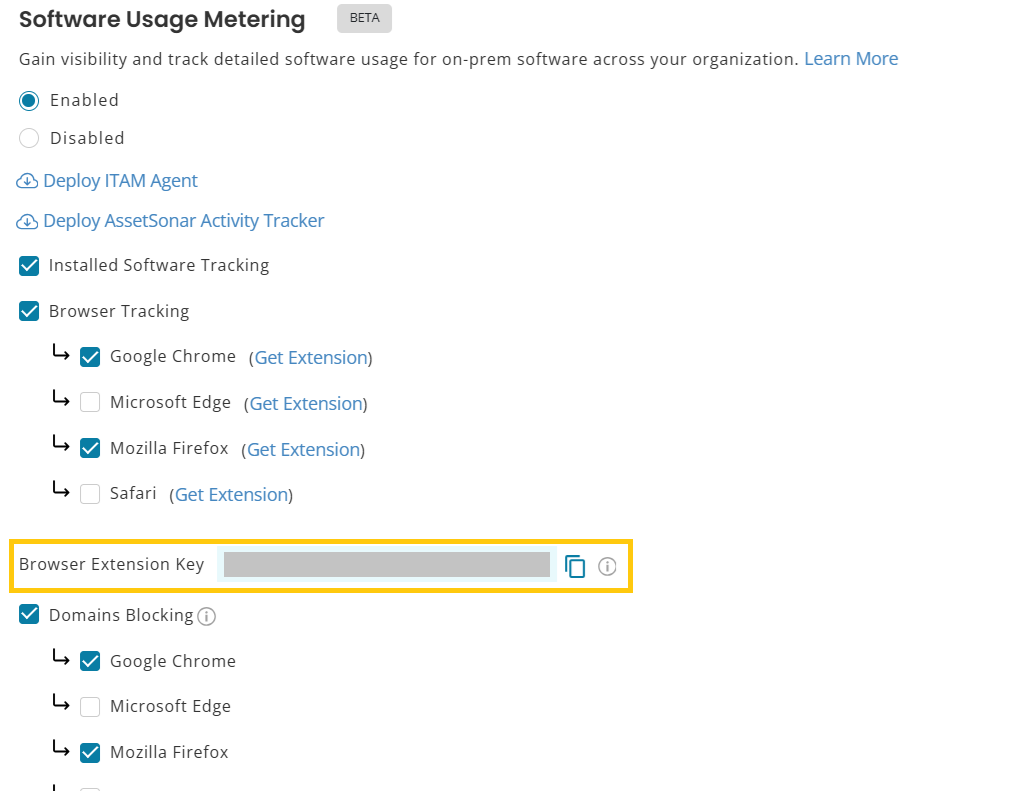
You can find the Browser Extension Key below the supported browser list under Software Usage Metering.
4. Monitor Browser Activity
Once Browser Tracking is enabled and the relevant AssetSonar browser extension is installed, AssetSonar begins capturing browser activity from the supported browsers you have enabled.
This data flows into widgets and KPIs in Software → Overview, giving you visibility into which SaaS applications are being accessed through browsers. For more details, check out our blog on Software Usage Metering in AssetSonar.
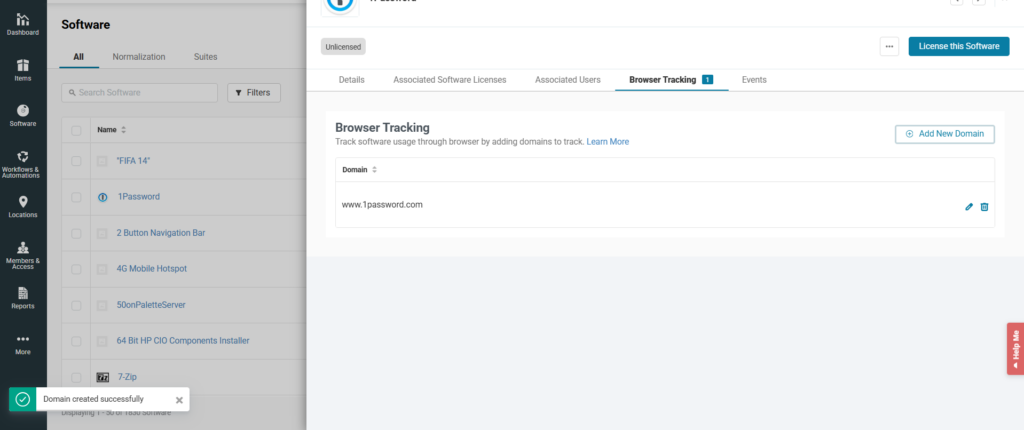
You can also track the browser activity for each software application tracked in AssetSonar. From the software detail page of the relevant software application, go to the Browser Tracking tab. Here, you can add URLs of the domains you want to track through this functionality.
Note: For normalized software, these will be auto-populated. For more details on software normalization, read our blog here.
Here is a screenshot of the Browser Tracking tab for 1Password.
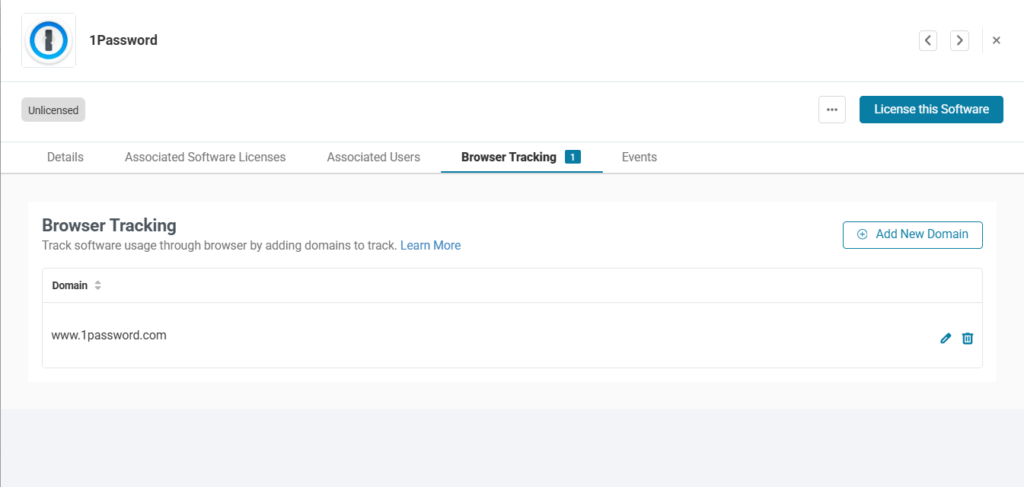
Clicking the Add New Domain button will open a new popup where you can add the desired domains to track. Once you have filled out the fields, click ‘Add’, and the URL will be added to the list of URLs that are already being tracked.
You can also delete a URL from the list by clicking the Bin icon. The system will show you the following warning:
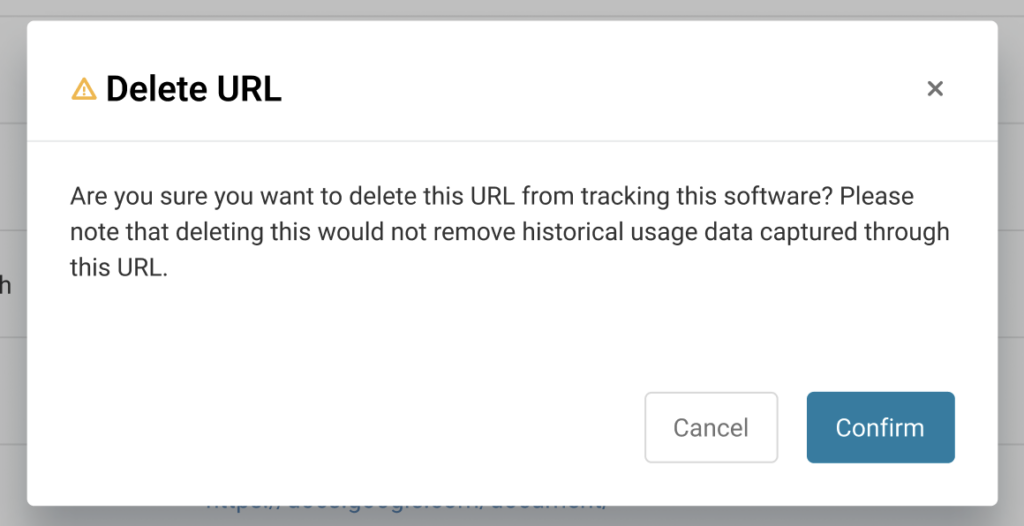
Please note that if you want to delete a URL from the list and there is some activity already tracked for that software, AssetSonar will keep the record and won’t delete it with the deletion of the URL.
This feature also allows you to view the activities on the tracked URLs with the time stamps. Go to the ‘Associated Users’ tab, and you’ll get a list of the users accessing the software. Here is a screenshot of the tab:
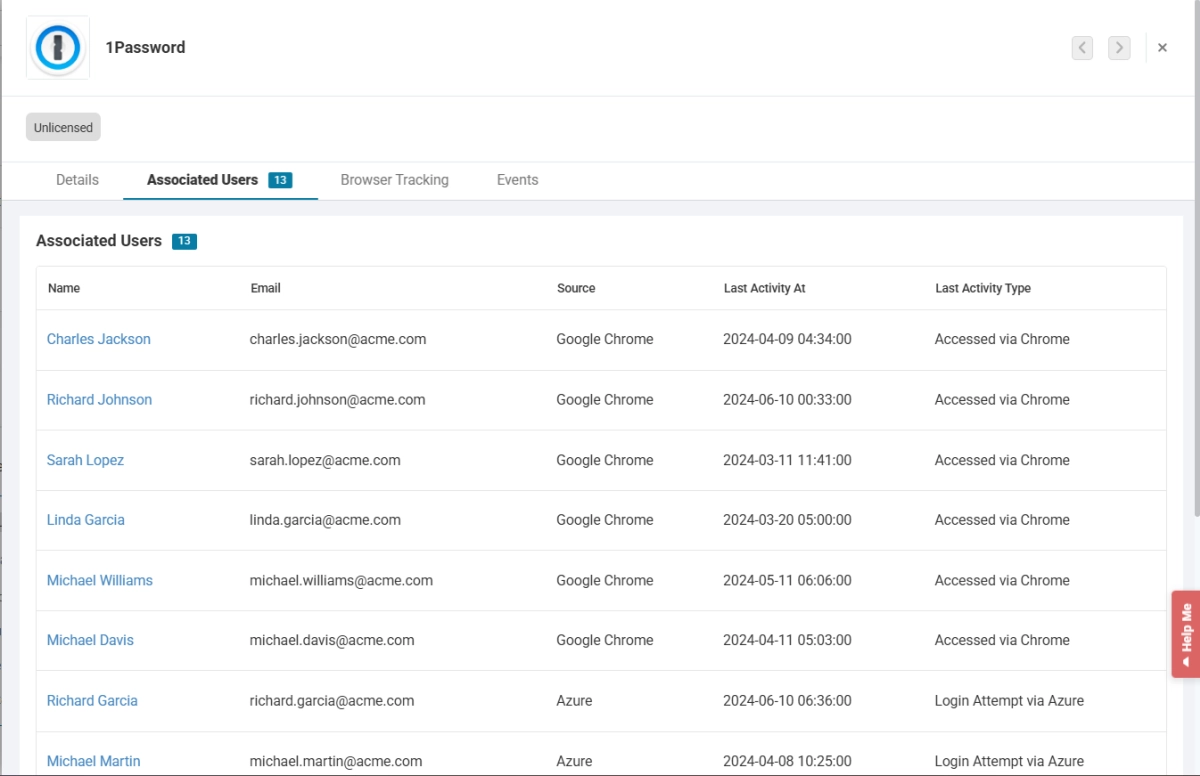
Here, you’ll be able to view two primary columns. Let’s see what information they provide:
- Last Activity at: This provides the time of the last activity performed.
- Last Activity Type: This column will give information about the type of activity that was last performed. For example, it will tell you if the application was last accessed via a browser or an SSO application.
You will also be able to view detailed information on tracked software from AssetSonar’s reports.
5. Reports and KPIs
Browser tracking data integrates into your Software Usage Metering dashboards. You can use widgets and KPIs to:
- Spot the most visited SaaS domains
- Detect shadow IT (apps accessed via browser)
- Correlate browser usage with licensed vs. unlicensed software
Smarter SaaS Visibility with Browser Tracking
With Browser Tracking and Domain Blocking, AssetSonar gives IT teams both visibility and control over SaaS usage. From preventing shadow IT to ensuring compliance, you can now manage browser activity directly through one centralized module.Need help getting started? Email us at support@ezo.io — we’re here to assist.
