IT records rarely exist on their own. A laptop may be assigned to a member, linked to a software license, purchased through a PO, covered by a contract, assigned to a location, and supplied by a vendor. When these connections are spread across different modules, it becomes harder to understand ownership, dependencies, and operational impact.
AssetSonar’s IT Graph gives you a visual workspace for exploring and managing these CMDB relationships. From the Configuration Management Database workspace, you can browse configuration items, view connected records on a diagram, add missing relationships manually, and manage the relationship types available in your account.
This helps your team build a Unified IT Graph — a connected view of the assets, users, software, contracts, vendors, locations, and other records that support your IT operations. IT Graph Intelligence extends this connected view into AssetSonar ITSM tickets, allowing technicians to assess the health of affected and related configuration items while diagnosing an issue.
This guide walks you through using IT Graph to browse configuration items, explore Diagram View, view relationships from a CI record, add manual relationships, manage relationship types, and export relationship maps for audits or internal reviews.
1. Enable IT Graph
You can enable the IT Graph and the new CMDB experience for your account by performing the following steps:
- Go to Settings → Company Settings & Add Ons.
- Locate IT Graph.
- Select Enabled.
- Click Update.
Note: Once IT Graph is enabled, the old Relationships module and setting are replaced by the new IT Graph workflow. If you do not see the setting or the IT Graph navigation item, reach out to us at support@ezo.io.
2. Open IT Graph
Use IT Graph when you want to understand how records in AssetSonar connect to one another. The workspace opens as Configuration Management Database, where you can browse configuration items, explore relationship diagrams, and manage relationship types from one place.
To open IT Graph:
- Go to IT Graph from the navigation menu.
- Use the available tabs to work with your CMDB data:
- Configuration Items
- Diagram View
- Relationships
Use Configuration Items to find a specific CI record. Use Diagram View to select a CI and explore its connected records visually. Use Relationships to view or manage relationship types in your account.
3. Browse Configuration Items
Use Configuration Items when you already know the type of record you want to inspect, such as an asset, software license, vendor, contract, location, or member.
To browse configuration items:
- Go to IT Graph → Configuration Items.
- Select a CI type from the left panel.
- Use search, filters, or sorting to find the record you need.
- Open the record to view its details.
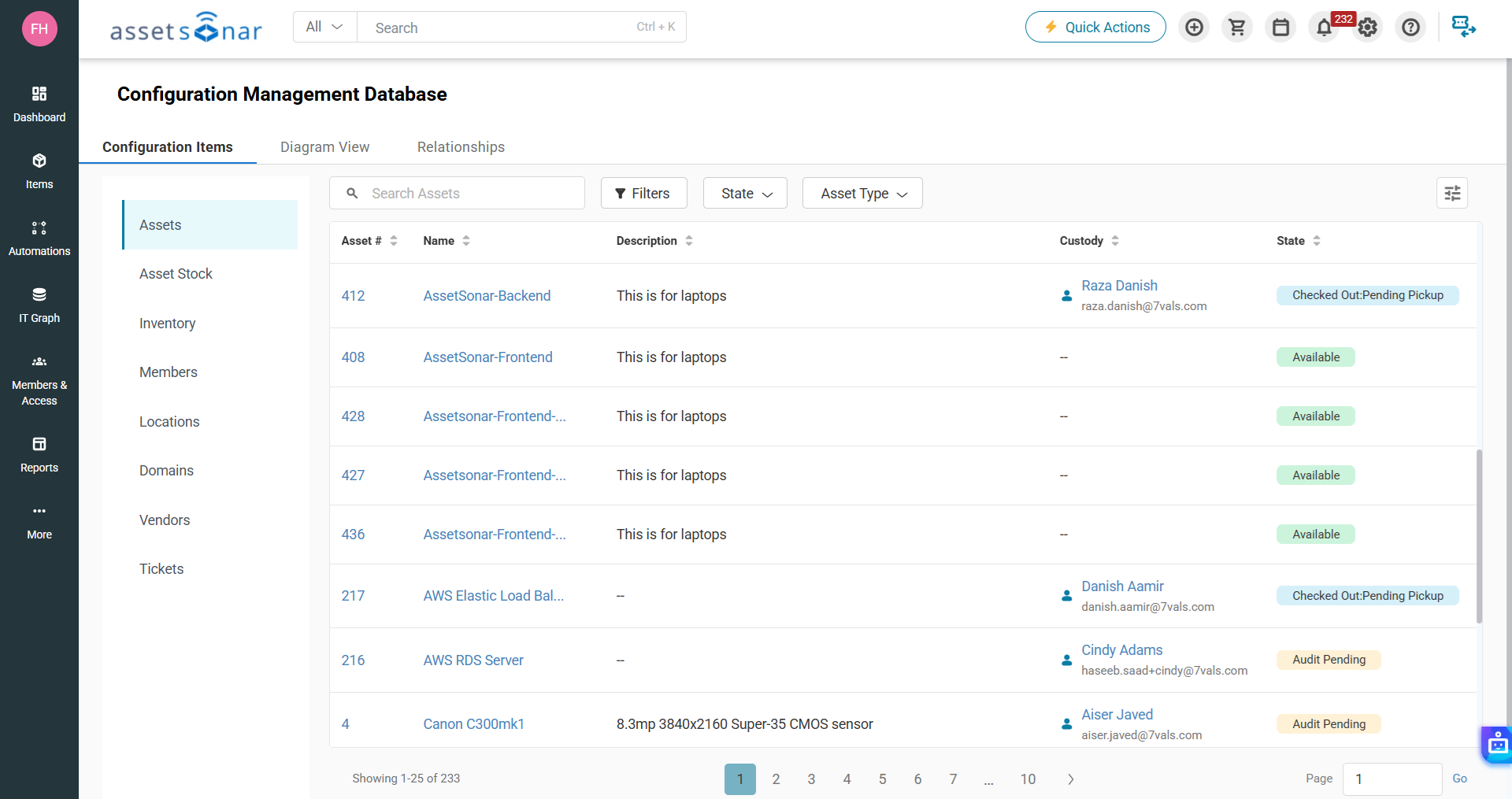
Depending on your account setup, you may see CI types such as Assets, Members, Software, Software Licenses, Purchase Orders, Contracts, Locations, and Vendors.
Once you open a CI record, you can review its details and use its Relationships tab to understand the records linked to it.
4. Select a CI in Diagram View
Use Diagram View when you want to start from one configuration item and see how it connects to the rest of your IT environment. You can choose the CI type first, then search for the specific record you want to inspect.
To select a CI:
- Go to IT Graph → Diagram View.
- Select the CI type from the dropdown, such as Asset.
- Search for the CI you want to use as the central record.
- Select the record to load its relationship diagram.
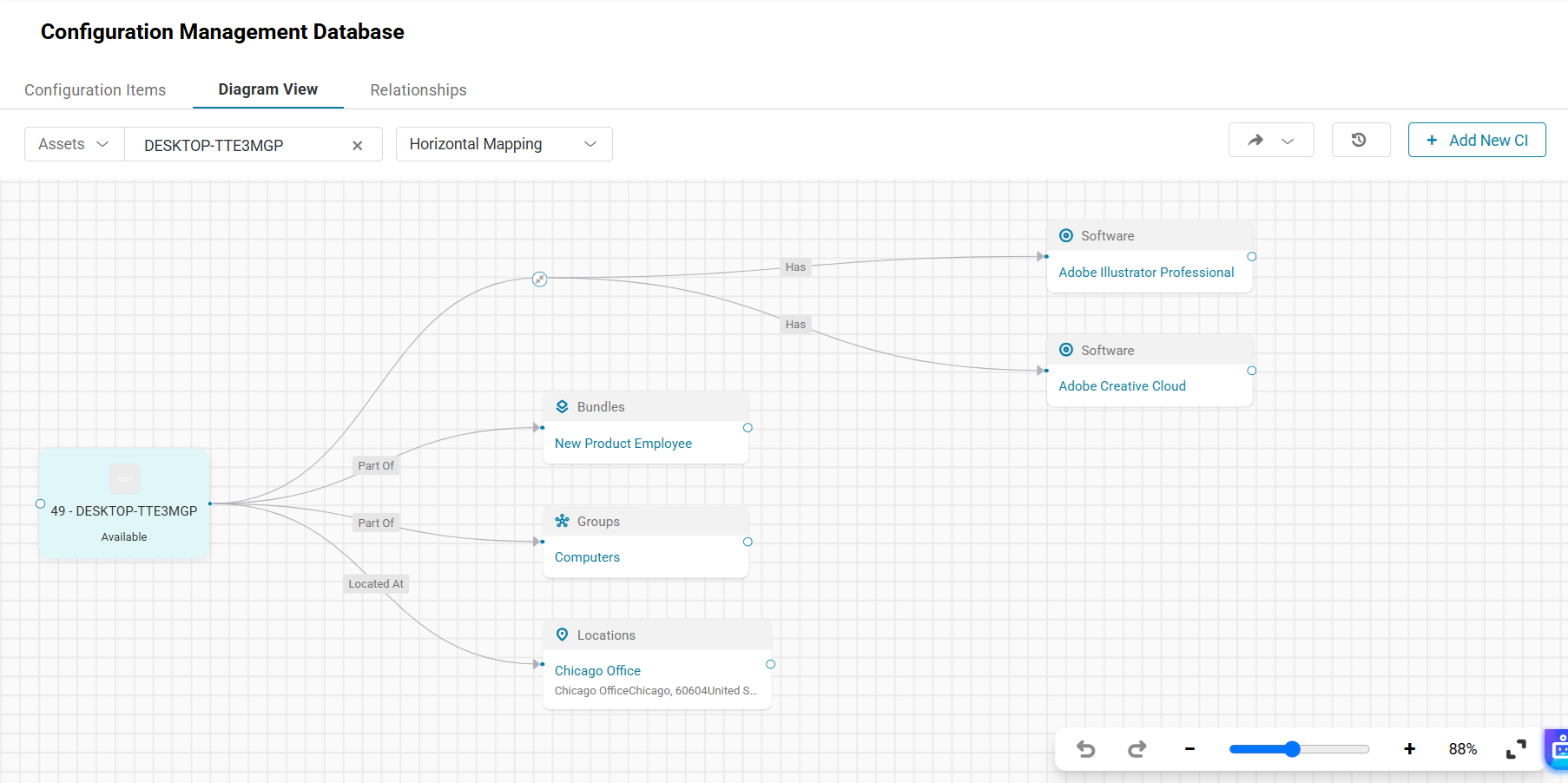
The selected CI appears as the central record on the canvas. Related records appear around it as connected cards, and each line shows the relationship type and direction.
For example, you may see that an asset is Checked Out To a member, Located At a location, covered by a contract, or linked to related software and asset records.
5. View Relationships from a CI Record
You do not always need to start from the main IT Graph workspace. If you are already working inside a supported CI record, you can open its Relationships tab to see how that record connects to the rest of your environment.
To view relationships from a CI record:
- Open a supported record, such as an Asset, Software License, Contract, or Vendor.
- Click the Relationships tab.
- Review the relationship map.
The record you opened appears as the central CI. Related records appear around it as connected cards, and each line shows the relationship type and direction.
For example, before retiring an asset, you can check whether it is linked to a member, contract, software license, vendor, purchase order, location, or related asset.
6. Change Relationship Depth and Grouping
By default, the relationship graph shows Level 1 relationships for the central or selected CI. These are the records directly connected to the CI you are viewing.
To explore relationships beyond the first level:
- Locate a connected CI card on the graph.
- Click the Show Next Levels icon next to that CI card.
- Review the additional records connected to that CI.
- Continue expanding connected CI cards if you want to go deeper into the relationship chain.
This lets you move beyond direct relationships and explore the wider impact path across your CMDB. For example, you can start from an asset, expand to its linked software license, then continue expanding to see contracts, vendors, or other connected records where applicable.
When there are several related records, AssetSonar may group similar CI records together to keep the graph readable. For example, multiple software records may appear as one Software group.
To view individual records inside a group:
- Locate the grouped CI card.
- Click the expand option.
- Review the individual cards in Expanded View.
7. View CI Health with IT Graph Intelligence
IT Graph Intelligence helps technicians investigate the health of affected and related configuration items directly from an AssetSonar ITSM ticket. Instead of using the relationship graph only as a static reference, technicians can generate a diagnosis for an individual CI while retaining its wider dependency context.
To view the health of a CI:
- Open the relevant ITSM ticket.
- Open its IT Graph to view the affected item and related configuration items.
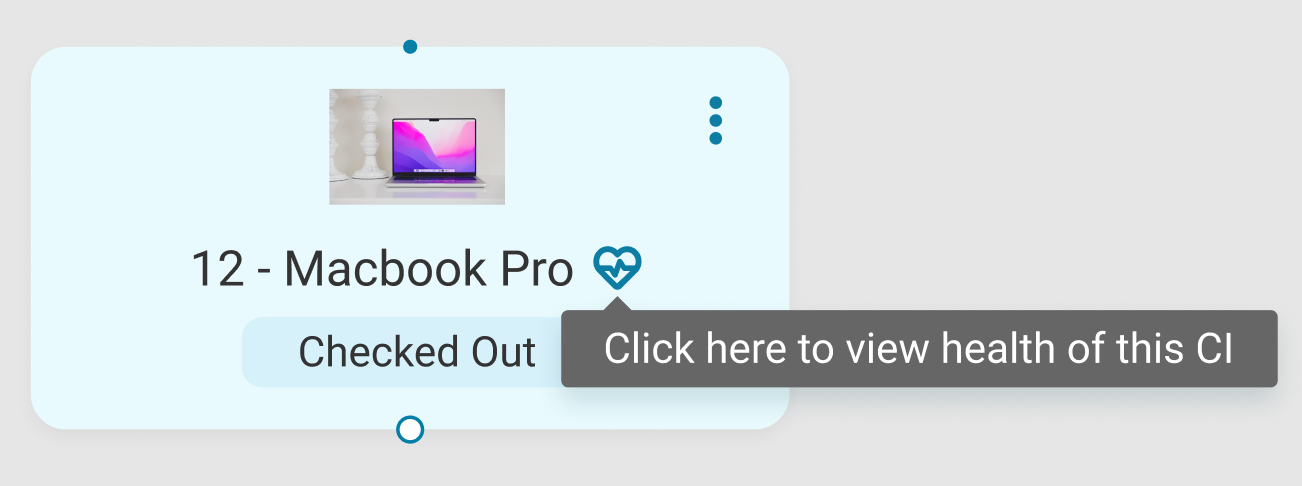
- Locate the CI you want to investigate and click View Health on its card.
- Open the Suggestions and Automations tab.
- Review the generated Diagnosis for the selected CI.
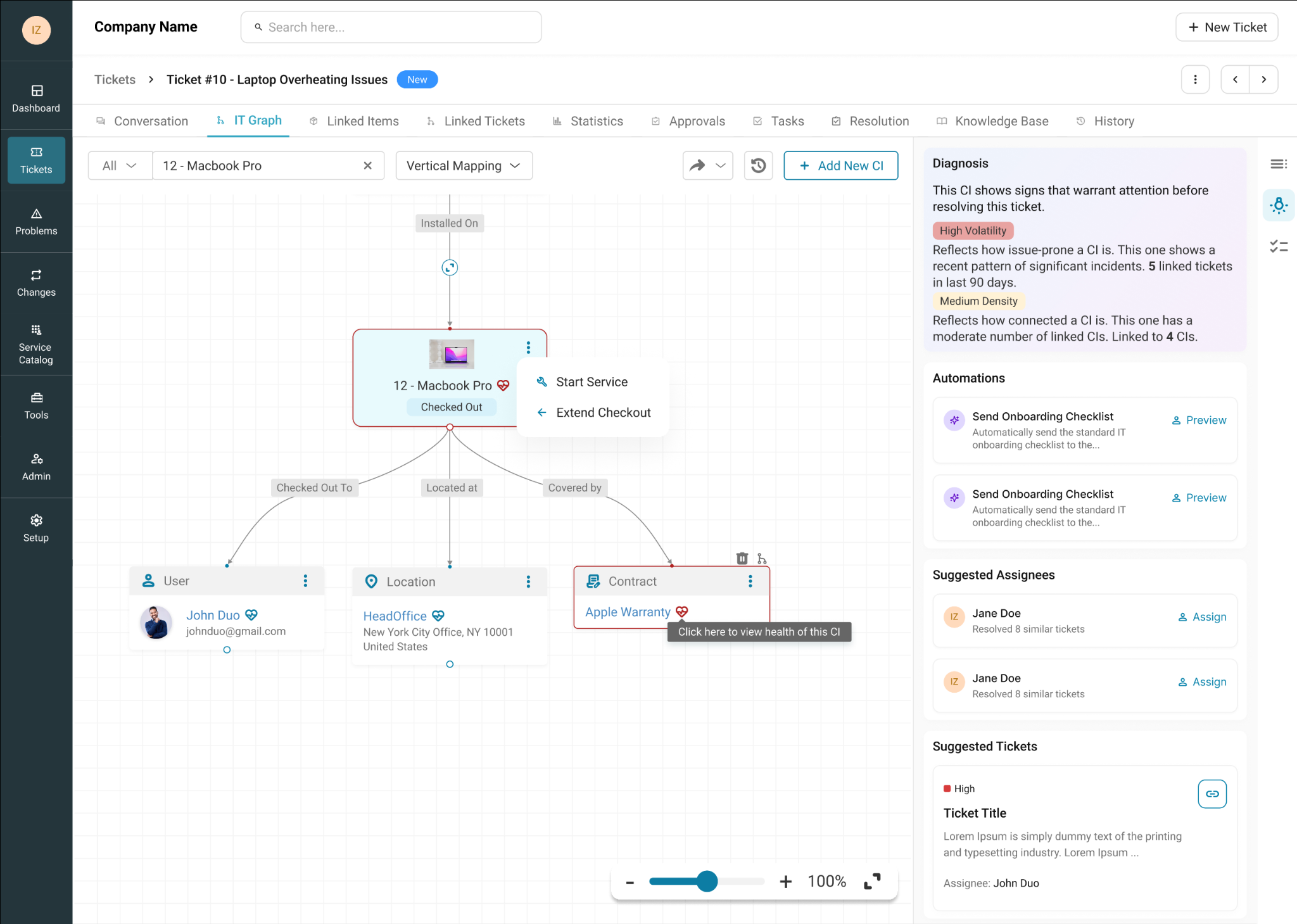
The diagnosis uses the information available for that CI, including signals related to its behavior, issue frequency, failure propagation, and data reliability. This helps technicians determine whether the affected item or one of its related CIs may be contributing to the reported issue.
Repeat the process for other related CI cards when you need to investigate the wider impact path. Use the generated diagnosis alongside the ticket information and your technical investigation before taking action.
8. Add a CI and Create a Manual Relationship
Automated relationships help build the graph, but some relationships may still need to be added manually. For example, you may want to connect a contract to a vendor, link a software license to an asset, or add a relationship that reflects how ownership or responsibility is tracked internally.
To add a CI to the diagram:
- Open a relationship diagram. You can do this from IT Graph → Diagram View by selecting a central CI, or from a supported record such as an Asset, Software License, Contract, or Vendor by opening its Relationships tab.
- Click Add New CI.
- Select one or more CI records from the pop-up.
- Add them to the map.
The selected records appear as cards on the diagram. You can then connect them to other CIs.
To create a manual relationship:
- Drag a connection from one CI card to another.
- Review the Source CI and Target CI in the pop-up.
- Select the appropriate Relationship Type.
- Save the relationship.
AssetSonar shows relationship types that match the selected source and target CI types. For example, if you connect an Asset to a Member, you’ll only see relationship types that apply to that pairing.
9. Edit or Delete a Manual Relationship
As your IT environment changes, manually added relationships may need to be updated or removed. For example, a record may have been linked incorrectly, a contract may no longer apply, or ownership may have changed.
To edit or delete a manual relationship:
- Open the relevant relationship diagram. You can do this from IT Graph → Diagram View by selecting a central CI, or from a supported record such as an Asset, Software License, Contract, or Vendor by opening its Relationships tab.
- Click the relationship line between the two CI cards.
- Update the Relationship Type or delete the relationship.
Note: You can only edit or delete manually added CIs and relationships.
10. Export the Relationship Diagram
Export the diagram when you need to share a point-in-time snapshot of CI relationships for documentation, audits, dependency reviews, or change planning.
To export a relationship diagram:
- Open the relevant relationship diagram. You can do this from IT Graph → Diagram View by selecting a central CI, or from a supported record such as an Asset, Software License, Contract, or Vendor by opening its Relationships tab.
- Click the Export button.
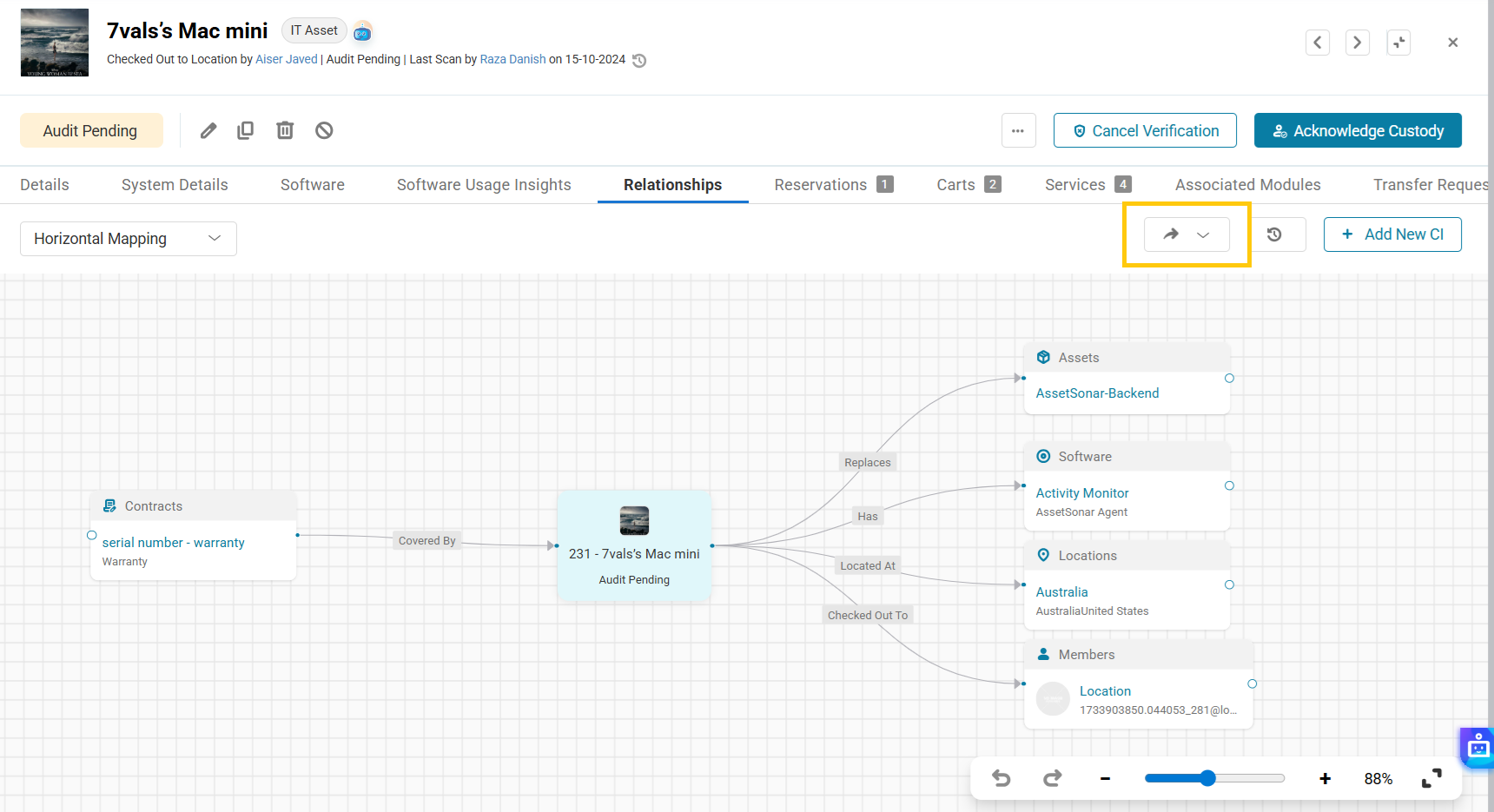
- Select one of the available formats:
- JPEG
- SVG
Use the exported file when you need to share CI relationships with another team, attach them to audit documentation, or review dependencies outside AssetSonar.
11. Manage Relationship Types
The Relationships tab controls the relationship types available in your CMDB. These relationship types define how one CI can connect to another. For example, an asset may be Checked Out To a member, a contract may be Party To a vendor, or a contract may Govern a purchase order.
To view relationship types:
- Go to IT Graph → Relationships.
- Use search to find a relationship type by name.
- Click Filters to narrow down the list by fields such as Source CI and Target CI.
To create a new relationship type:
- Click Create New Relationship.
- Select the Source CI.
- Select the Target CI.
- Enter the Relationship Type name.
- Save the relationship type.
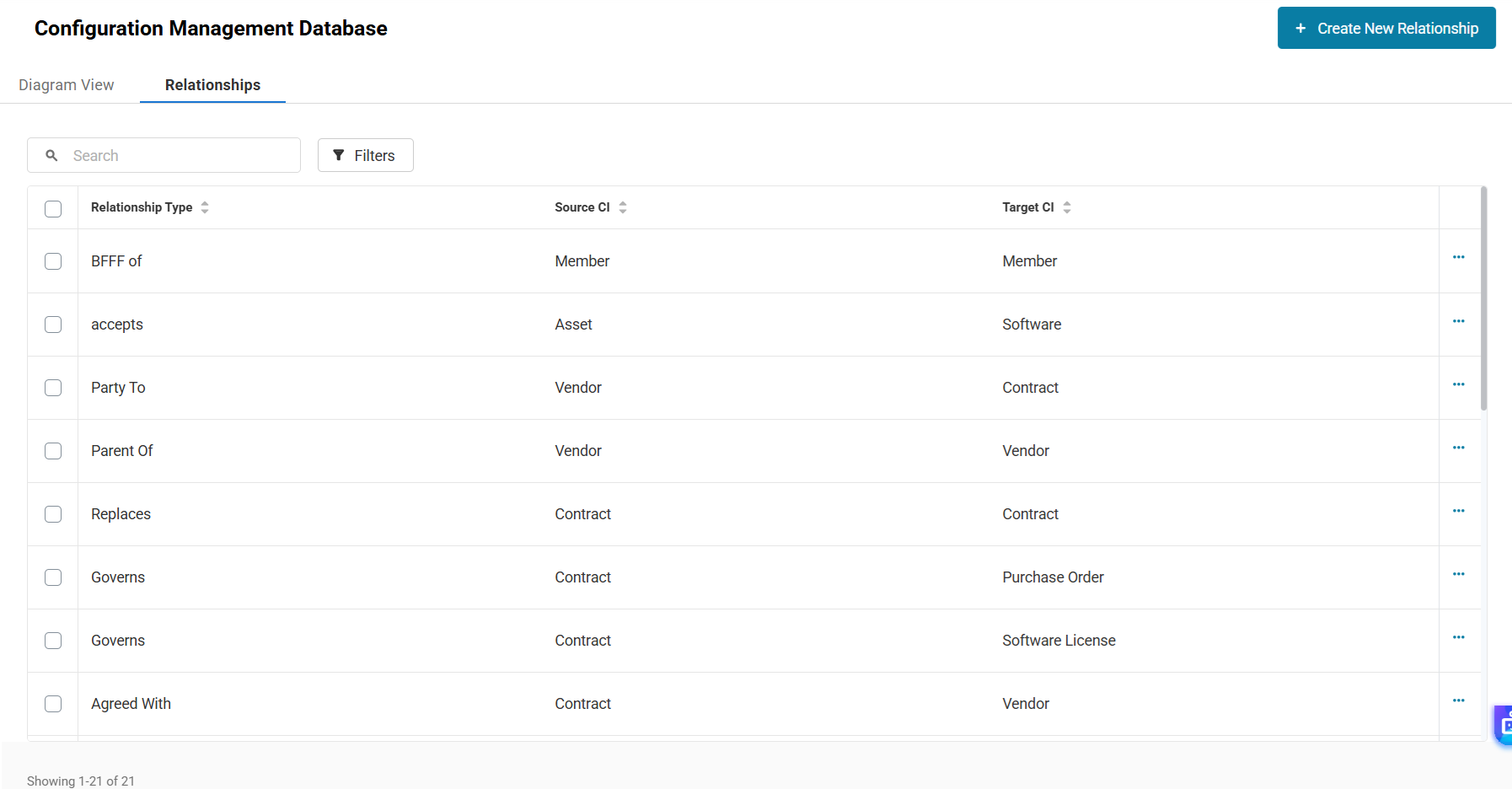
Once created, the relationship type becomes available when users manually connect matching CI types on the diagram.
You can also delete custom relationship types individually or in bulk when they are no longer needed.
Ready to Build Your Unified IT Graph?
With AssetSonar’s IT Graph, you can move beyond disconnected records and start viewing your IT environment through one connected CMDB view. Use relationship maps to understand ownership, dependencies, contracts, vendors, software links, and operational impact from a single workspace.
Need help setting up CI relationships or reviewing your CMDB structure? Reach out to us at support@assetsonar.io — we’re happy to assist.
