If your organization previously used AssetSonar’s Relationships module, you can migrate those connections to IT Graph. The migration maps supported records and their existing relationships into the new visual workspace, where you can browse configuration items and explore how they connect across your IT environment.
Compared with the legacy Relationships module, where relationship creation and navigation were primarily centered on individual item records, IT Graph provides a dedicated workspace for browsing configuration items, exploring deeper dependency chains, and managing relationships centrally.
This guide walks you through enabling IT Graph, confirming the migration, and verifying your migrated relationships.
Important: Migrating to IT Graph replaces the legacy Relationships module and setting. Once IT Graph has been enabled and the migration confirmed, disabling IT Graph later will not restore the old Relationships module.
1. Enable IT Graph and Confirm the Migration
- Go to Settings → Company Settings & Add Ons.
- Locate IT Graph.
- Select Enabled and click Update.
- Review the migration pop-up.
- Click Confirm to migrate your existing relationships, or Cancel to exit without migrating.
After you confirm the migration, IT Graph replaces the legacy Relationships module and setting.
2. What Gets Migrated to IT Graph
AssetSonar migrates relationships associated with the following supported record types:
- Items
- Assets
- Asset Stock
- Inventory
- Members
- Locations
- Software Licences
- Domains
- Packages
- Groups
- Bundles
- Vendors
- Software
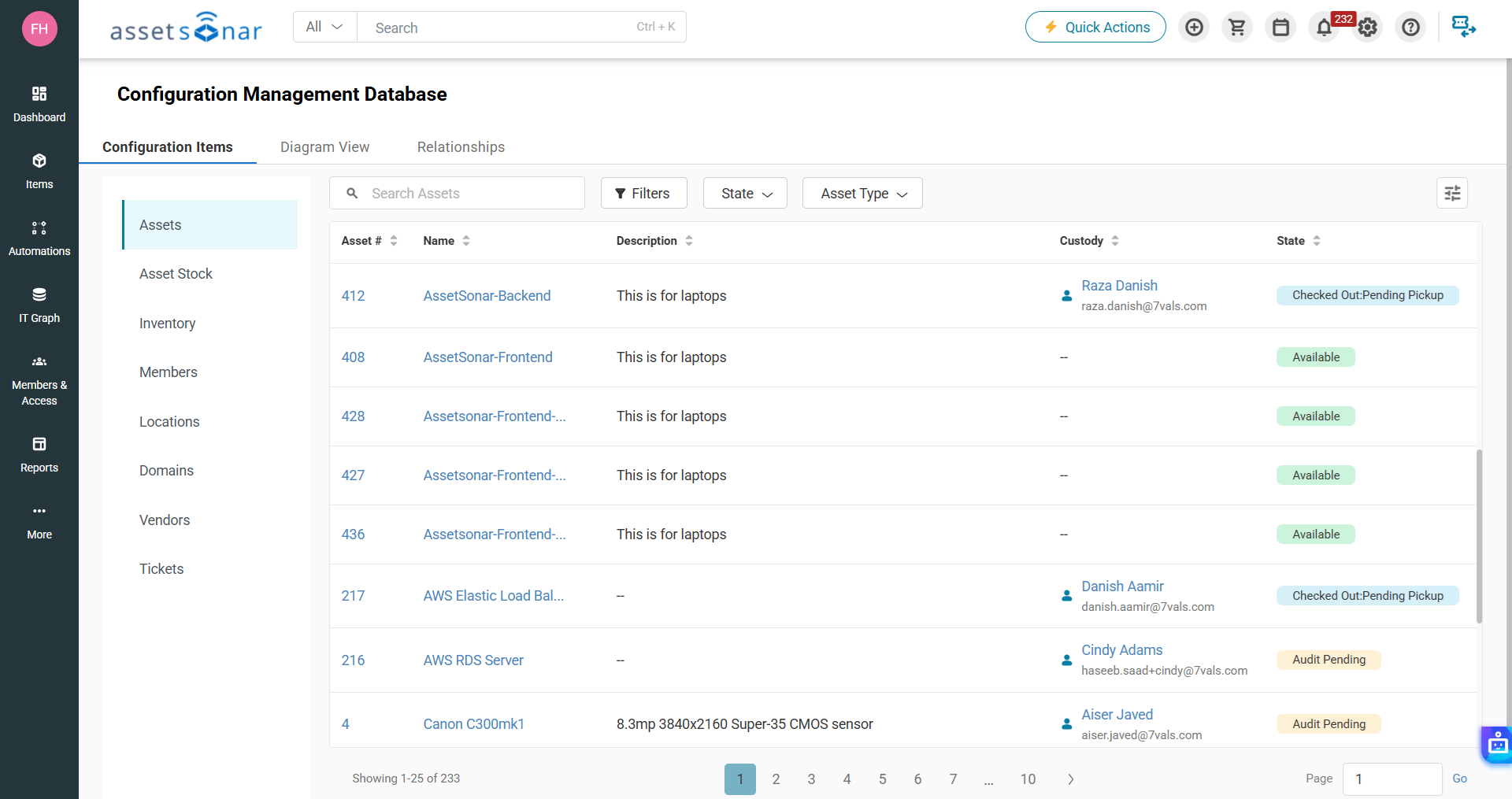
Existing relationships are mapped to the relationship categories supported by IT Graph. Your existing relationships remain available after migration. AssetSonar maps these relationships into IT Graph using custom relationship types. After migration, review a few important records to confirm that their expected connections appear correctly.
3. Open IT Graph
After completing the migration:
- Go to IT Graph from the navigation menu.
- Use the available tabs to review your migrated data:
- Configuration Items
- Diagram View
- Relationships
Use Configuration Items to browse records by CI type. Use Diagram View to select a central CI and visually explore its connected records. Use Relationships to review the relationship types available in your account.
4. Verify Your Migrated Relationships
After opening IT Graph, verify that the migrated connections appear correctly for several important records.
To verify a relationship from Diagram View:
- Go to IT Graph → Diagram View.
- Select a CI type, such as Asset.
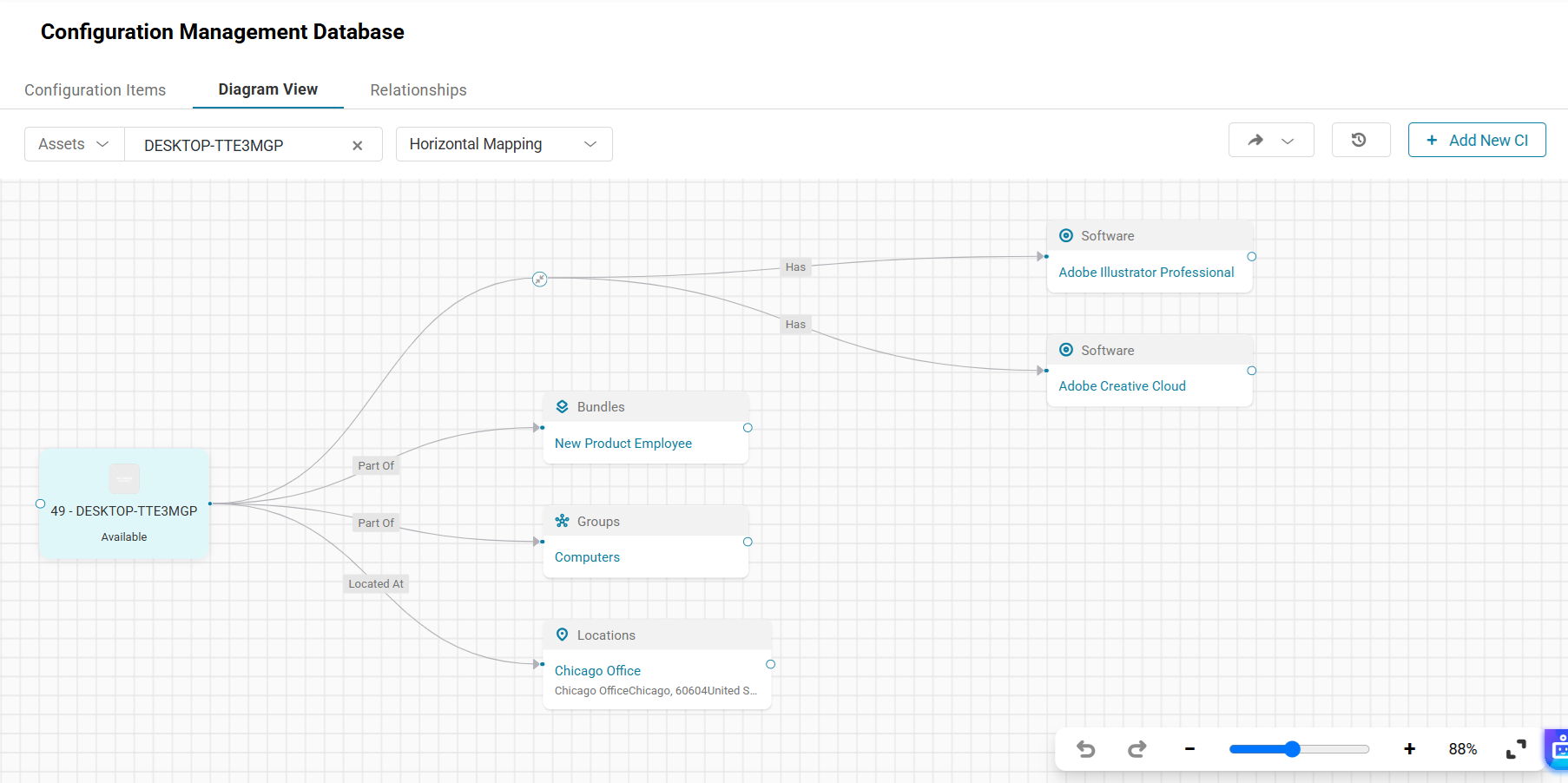
- Search for a record that previously had relationships.
- Select the record to load its relationship diagram.
- Review the connected CI cards and the relationship labels between them.
The selected record appears as the central CI, while its related records appear around it. Each connection identifies the relationship type and direction.
You can also open a supported record, such as an Asset or Software Licence, and select its Relationships tab to review the same relationship map directly from its details page.
Ready to Move Your Relationships to IT Graph?
Migrating to IT Graph brings your existing asset, member, software, location, vendor, and other supported relationships into one connected visual workspace. Once migrated, you can explore dependencies, review ownership and operational context, and manage future relationships directly from IT Graph.
Need help completing the migration or reviewing your relationships? Contact us at support@ezo.io.
